Moving Data Cleaning From Excel to SQL: A Translation Guide
Translate the Excel cleaning moves you know (TRIM, VLOOKUP, Remove Duplicates, fill down and PivotTables) into DuckDB SQL, with tested examples.
By Tnas · Published · 12 min read
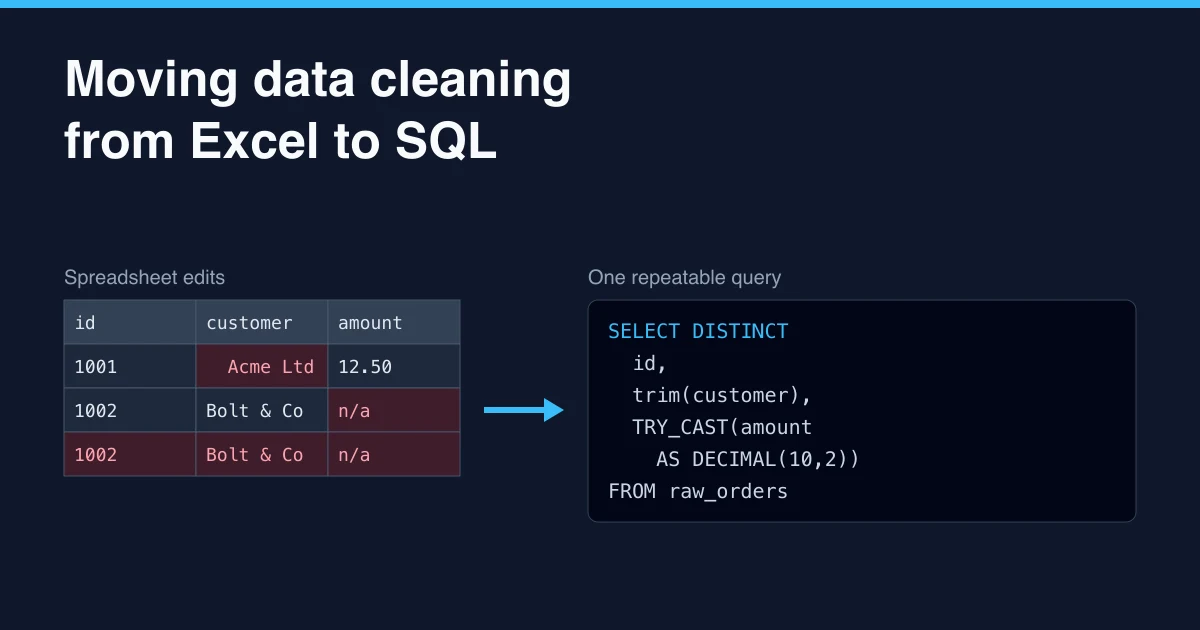
Almost every cleaning step you do in Excel has a direct SQL equivalent: TRIM becomes trim(), VLOOKUP becomes a LEFT JOIN, Remove Duplicates becomes DISTINCT or QUALIFY, and a PivotTable becomes GROUP BY or PIVOT. What changes is not the vocabulary but the way you work. In Excel you edit cells until the sheet looks right. In SQL you write rules once, leave the source file untouched, and run the same rules on next month's file without redoing anything.
A LEFT JOIN is SQL's version of a lookup: it keeps every row of the main table and adds matching columns from the other, leaving blanks where there is no match. This guide maps the common Excel cleaning moves to DuckDB SQL, shows a worked example you can run, and points out the places where a literal translation gives a different answer. A few pieces of syntax used here (QUALIFY, IGNORE NULLS, PIVOT ... USING, column aliases in WHERE) are DuckDB conveniences; other databases have equivalents with slightly different spelling.
Key Takeaways
- Load the file as text first, so SQL sees exactly what was in the file before any type guessing.
- Most Excel functions translate one to one, but Excel's
TRIMalso collapses inner spaces, andVLOOKUPreturns one match where a join returns all of them.- Replace "fix the cell" habits with columns that flag or quarantine problem rows, so nothing is silently overwritten.
- Excel's Remove Duplicates and fill down depend on row order; in SQL you must write that order down as a column.
- Keep Excel for looking at results. Do the cleaning in a query you can rerun.
Why move cleaning out of Excel at all?
Excel is a fine place to look at data and a risky place to change it. Three limits push teams toward SQL.
Size. An Excel worksheet holds at most 1,048,576 rows by 16,384 columns (Microsoft, Excel specifications and limits). Older .xls files stop at 65,536 rows. In October 2020, Public Health England left 15,841 positive COVID-19 cases out of its daily figures after test results were loaded into the old .xls format and the extra rows were cut off (The Register, 5 October 2020).
Repeatability. A sequence of manual edits leaves no record. When a new extract arrives, you either remember every step or start again. A SQL script is the record. Excel's own Power Query also records applied steps that you can refresh, which is a real improvement over hand edits; SQL adds a plain-text script you can keep in version control, review line by line and run in the same engine as the rest of a data pipeline.
Silent type changes. Excel converts values as you type, paste or open a CSV. It keeps only 15 significant digits, so a 16-digit identifier loses its last digit to a zero (Microsoft, Keeping leading zeros and large numbers). It also strips leading zeros and turns some codes into dates unless you switch those conversions off (Microsoft, Data import and analysis options).
Load the file as text, not as guessed types
The first habit to break is letting the tool decide types for you. In DuckDB you can read every column as text and convert deliberately later:
SELECT *
FROM read_csv('orders.csv', all_varchar = true);
┌──────────┬──────────┬─────────┐
│ order_id │ customer │ amount  │
│ varchar  │ varchar  │ varchar │
├──────────┼──────────┼─────────┤
│ 00123    │ Acme     │ 12.50   │
│ 00124    │ Bolt     │ n/a     │
└──────────┴──────────┴─────────┘
The leading zeros in order_id survive, and n/a is still visible as the problem it is. For workbooks, DuckDB's excel extension provides read_xlsx with the same all_varchar option, plus sheet and range to pick the cells you need (DuckDB, Excel extension). The guide to reading CSV files without changing your data explains why this habit matters.
The translation table: Excel cleaning moves in DuckDB SQL
Each row is one thing you would do in a spreadsheet and the SQL that does the same job across the whole column.
| Excel move | DuckDB SQL | Watch out for |
|---|---|---|
TRIM(A2) |
regexp_replace(trim(col), ' +', ' ', 'g') |
Plain trim() keeps inner double spaces; Excel's TRIM collapses them |
UPPER, LOWER |
upper(col), lower(col) |
Decide whether case matters before changing it |
PROPER |
No built-in; usually leave names alone | Title-casing damages names such as "McDonald" |
| Find and Replace | replace(col, 'old', 'new') or regexp_replace |
Replace inside a rule, not on the source |
| Text to Columns | split_part(col, ', ', 1) |
Count the parts first; rows with extra delimiters break the split |
VALUE, IFERROR(VALUE(A2), "") |
TRY_CAST(col AS DECIMAL(10,2)) |
A failed cast gives NULL; report those rows instead of hiding them |
DATEVALUE |
TRY_CAST(col AS DATE) or CAST(try_strptime(col, '%d/%m/%Y') AS DATE) |
Declare the date format; do not let it guess |
IF |
CASE WHEN ... THEN ... ELSE ... END |
An ELSE that hides unexpected values |
VLOOKUP, XLOOKUP |
LEFT JOIN lookup USING (key) |
Duplicate keys in the lookup multiply rows |
| Remove Duplicates | SELECT DISTINCT or QUALIFY row_number() ... = 1 |
Excel keeps the first row in sheet order; SQL needs an explicit order |
| Filter, then delete rows | WHERE (keep) plus an exceptions query (removed) |
Deleted rows should be counted, not vanish |
| Fill down | last_value(col IGNORE NULLS) OVER (ORDER BY row_no) |
Needs a row-order column |
COUNTIF, SUMIF |
GROUP BY or count(*) FILTER (WHERE ...) |
Count missing values as their own group |
| PivotTable | GROUP BY or PIVOT ... ON ... USING sum(...) |
Missing combinations show as NULL, not 0 |
| Conditional formatting | A flag column such as amount IS NULL AS bad_amount |
A colour is not data; a flag column can be counted |
The operation reference pages show the same moves side by side in SQL, pandas and a visual builder, for example trim whitespace.
A worked example: one sheet of edits, one query
Here is a small order extract with the usual problems: padded names, inconsistent country codes, an n/a amount, an exact duplicate row, a date stored as an Excel serial number, and a SKU that does not exist in the product list.
CREATE TABLE raw_orders AS
SELECT * FROM (VALUES
  ('1001', '  Acme   Ltd ', 'gb',  '12.50', '2026-03-04', 'SKU-01'),
  ('1002', 'Bolt & Co',    'GB ', 'n/a',   '2026-03-05', 'SKU-02'),
  ('1002', 'Bolt & Co',    'GB ', 'n/a',   '2026-03-05', 'SKU-02'),
  ('1003', 'Cobalt',       NULL,  '7',     '46087',      'SKU-09')
) AS t(order_id, customer, country, amount, order_date, sku);

CREATE TABLE products AS
SELECT * FROM (VALUES ('SKU-01', 'Widget'), ('SKU-02', 'Gadget'))
  AS p(sku, product_name);
In Excel you would fix this with a helper column per problem, a lookup, a manual delete and a format change. In SQL it is one query. The DISTINCT in the first step removes only rows that are identical in every column, which is what Remove Duplicates does when every column is ticked:
WITH deduped AS (
  SELECT DISTINCT * FROM raw_orders
)
SELECT
  order_id,
  regexp_replace(trim(customer), ' +', ' ', 'g')   AS customer,    -- Excel TRIM()
  upper(trim(country))                             AS country,     -- UPPER(TRIM())
  TRY_CAST(amount AS DECIMAL(10,2))                AS amount,      -- IFERROR(VALUE())
  coalesce(
    TRY_CAST(order_date AS DATE),
    DATE '1899-12-30' + TRY_CAST(order_date AS INTEGER)
  )                                                AS order_date,  -- serial to date
  r.sku,
  p.product_name                                                   -- XLOOKUP()
FROM deduped AS r
LEFT JOIN products AS p USING (sku)
ORDER BY order_id;
┌──────────┬───────────┬─────────┬───────────────┬────────────┬─────────┬──────────────┐
│ order_id │ customer  │ country │    amount     │ order_date │   sku   │ product_name │
│ varchar  │  varchar  │ varchar │ decimal(10,2) │    date    │ varchar │   varchar    │
├──────────┼───────────┼─────────┼───────────────┼────────────┼─────────┼──────────────┤
│ 1001     │ Acme Ltd  │ GB      │         12.50 │ 2026-03-04 │ SKU-01  │ Widget       │
│ 1002     │ Bolt & Co │ GB      │          NULL │ 2026-03-05 │ SKU-02  │ Gadget       │
│ 1003     │ Cobalt    │ NULL    │          7.00 │ 2026-03-06 │ SKU-09  │ NULL         │
└──────────┴───────────┴─────────┴───────────────┴────────────┴─────────┴──────────────┘
What the result shows
If two rows shared an order_id but differed in any other column, DISTINCT would keep both. That is deliberate: conflicting versions of the same order belong in an exceptions list for review, not in a silent pick.
Three things in that result deserve a comment rather than a quiet fix:
- Order 1002 has no amount.
TRY_CASTturnedn/aintoNULLinstead of failing. That is the SQL version ofIFERROR, and likeIFERRORit hides the problem unless you count those rows. The lesson on TRY_CAST for quarantine shows how to route them to an exceptions table with a reason. - Order 1003's SKU has no product. A
LEFT JOINkeeps the order and leavesproduct_nameempty, which is whatXLOOKUPwith no match would show as#N/A. Report these as orphans; do not drop them. - The serial date 46087 became 6 March 2026. Excel's default 1900 date system counts days from 1 January 1900 and also treats 1900 as a leap year for Lotus 1-2-3 compatibility (Microsoft Learn, Excel incorrectly assumes 1900 is a leap year). Adding the serial to 30 December 1899 gives the right date for anything after February 1900. Workbooks created in the 1904 date system are 1,462 days apart (Microsoft, Date systems in Excel), so check which system the file used.
You can practise exactly this kind of query on the free order-line export exercise, which grades your output against hidden checks.
Where a literal translation gives a different answer
Excel TRIM is not SQL trim
Excel's TRIM removes leading and trailing spaces and also reduces runs of spaces inside the text to one (Microsoft, TRIM function). SQL trim() only touches the ends. If you want Excel's behaviour, collapse the inner runs as well: regexp_replace(trim(col), ' +', ' ', 'g'). Neither one removes the non-breaking space (character 160) that often arrives from web pages, so replace it first with replace(col, chr(160), ' ').
VLOOKUP returns one match; a join returns all of them
VLOOKUP stops at the first matching row in the lookup range. A SQL join returns every match. If the product list has two rows for the same SKU, each order for that SKU comes back twice:
CREATE TABLE o AS SELECT * FROM (VALUES ('A1', 'SKU-01'), ('A2', 'SKU-02')) t(order_id, sku);
CREATE TABLE p AS SELECT * FROM (VALUES
  ('SKU-01', 'Widget'), ('SKU-01', 'Widget v2'), ('SKU-02', 'Gadget')) t(sku, product_name);

SELECT o.order_id, p.product_name
FROM o LEFT JOIN p USING (sku)
ORDER BY ALL;
┌──────────┬──────────────┐
│ order_id │ product_name │
│ varchar  │   varchar    │
├──────────┼──────────────┤
│ A1       │ Widget       │
│ A1       │ Widget v2    │
│ A2       │ Gadget       │
└──────────┴──────────────┘
Excel would have shown "Widget" and hidden the conflict. SQL shows it, which is better, but only if you notice. Before any lookup join, check that the key is unique in the lookup table:
SELECT sku, count(*) AS n
FROM p
GROUP BY sku
HAVING count(*) > 1;
This row multiplication is called join fan-out, and the guide on checking joins before you trust them covers the full set of checks. The look up product names by SKU exercise is built around it.
Remove Duplicates and fill down depend on row order
Excel's Remove Duplicates permanently deletes rows and keeps the first one it meets in the sheet. Fill down copies the value above. Both rely on the physical order of rows, which a SQL table does not have. Before moving these steps, add a column that records the original row number (or use a real timestamp if the file has one). In DuckDB you can number rows as they are read:
CREATE TABLE sheet AS
SELECT row_number() OVER () AS row_no, *
FROM read_csv('sheet.csv', all_varchar = true);
This relies on DuckDB keeping the file's row order, which it does while the preserve_insertion_order setting is on (the default). Check the first few row_no values against the file before trusting them. Then use the column explicitly:
SELECT row_no,
       last_value(region IGNORE NULLS) OVER (ORDER BY row_no) AS region,
       units
FROM sheet
ORDER BY row_no;
If the source has no trustworthy order, filling down is guesswork in either tool. For duplicates, decide which row should survive (latest, most complete, highest priority) and write that rule into the ORDER BY of row_number(). The free pick a surviving record exercise practises exactly that.
PivotTables fill gaps for display; SQL leaves them NULL
A PivotTable shows an empty cell for a missing combination, and many people then type 0 into it. PIVOT in DuckDB returns NULL for combinations with no rows. Keep that distinction: "no sales recorded" and "zero sales" are different facts. The pivot reference page shows the safe pattern.
Replace "fix the cell" with "flag the row"
The biggest change is not syntactic. In a spreadsheet the natural move is to overwrite a bad value. In SQL the better move is to keep the original, add a cleaned column, and put rows that fail a rule into an exceptions output with a reason:
SELECT DISTINCT order_id, amount AS amount_raw,
       CASE
         WHEN TRY_CAST(amount AS DECIMAL(10,2)) IS NULL THEN 'amount not a number'
         WHEN sku IS NULL OR sku NOT IN (SELECT sku FROM products) THEN 'unknown sku'
       END AS reason
FROM raw_orders
WHERE reason IS NOT NULL
ORDER BY order_id;
┌──────────┬────────────┬─────────────────────┐
│ order_id │ amount_raw │       reason        │
│ varchar  │  varchar   │       varchar       │
├──────────┼────────────┼─────────────────────┤
│ 1002     │ n/a        │ amount not a number │
│ 1003     │ 7          │ unknown sku         │
└──────────┴────────────┴─────────────────────┘
The CASE stops at the first rule that fails, so each row gets one reason; the quarantine lesson shows how to record several. The sku IS NULL test matters: NOT IN returns NULL, not true, for a missing value, so a row with no SKU would otherwise slip through.
DuckDB lets WHERE refer to the reason alias defined in the SELECT; in PostgreSQL or SQL Server, wrap the query in a CTE first.
That list replaces the yellow highlighting you would have used in Excel, with one difference that matters: it can be counted, reviewed and rerun.
Keep Excel for what it is good at
Moving cleaning to SQL does not mean abandoning spreadsheets. Excel remains a quick way to eyeball a sample, share a short exceptions list with a stakeholder, or check a total. The rule of thumb: Excel is for reading results; the query is where changes happen. Export the cleaned table or the exceptions list to CSV for review, and never paste corrections back into the source file.
If you want a structured route through these skills, the SQL analyst learning path works through loading, typing, joining and deduplicating in DuckDB with graded exercises.
Frequently asked questions
Do I need a database server to move from Excel to SQL?
No. DuckDB runs inside a Python process, a command-line tool or a notebook, and queries CSV, Parquet and Excel files directly from disk. There is nothing to install on a server and no data to load into a separate system first.
What is the SQL equivalent of VLOOKUP?
A LEFT JOIN from your main table to the lookup table on the shared key. Use LEFT JOIN rather than JOIN so rows without a match stay in the result with an empty value, the same way VLOOKUP shows #N/A. Check that the key is unique in the lookup table first, or rows will be duplicated.
How do I convert Excel serial dates in SQL?
For workbooks using the default 1900 date system, add the serial number to DATE '1899-12-30'. That gives the correct date for serials from 61 onward (1 March 1900). For the 1904 system, add the serial to DATE '1904-01-01'.
Should I clean in Excel first and then load into SQL?
No. Cleaning in Excel first means the type conversions and manual edits happen before you have any record of them. Load the raw file as text, clean in SQL, and use Excel only to look at the output.
Related reading
- Why Excel Ruins Your Dates and IDs, and How to Prevent It
- Power Query vs SQL vs pandas for Data Cleaning
- Visual Data Cleaning Pipelines: When a No-Code Approach Makes Sense
Sources
- Microsoft. Excel specifications and limits.
- Microsoft. Keeping leading zeros and large numbers.
- Microsoft. Data import and analysis options in Excel.
- Microsoft. TRIM function.
- Microsoft. Date systems in Excel.
- Microsoft Learn. Excel incorrectly assumes that the year 1900 is a leap year.
- DuckDB. Excel extension.
- The Register. Excel spreadsheet blunder blamed after England under-reports 16,000 COVID-19 cases, 5 October 2020.