Why Excel Ruins Your Dates and IDs, and How to Prevent It
Excel strips leading zeros, cuts long IDs to 15 digits and turns codes like SEPT2 into dates. Why it happens, how to spot the damage and how to stop it.
By Tnas · Published · 8 min read
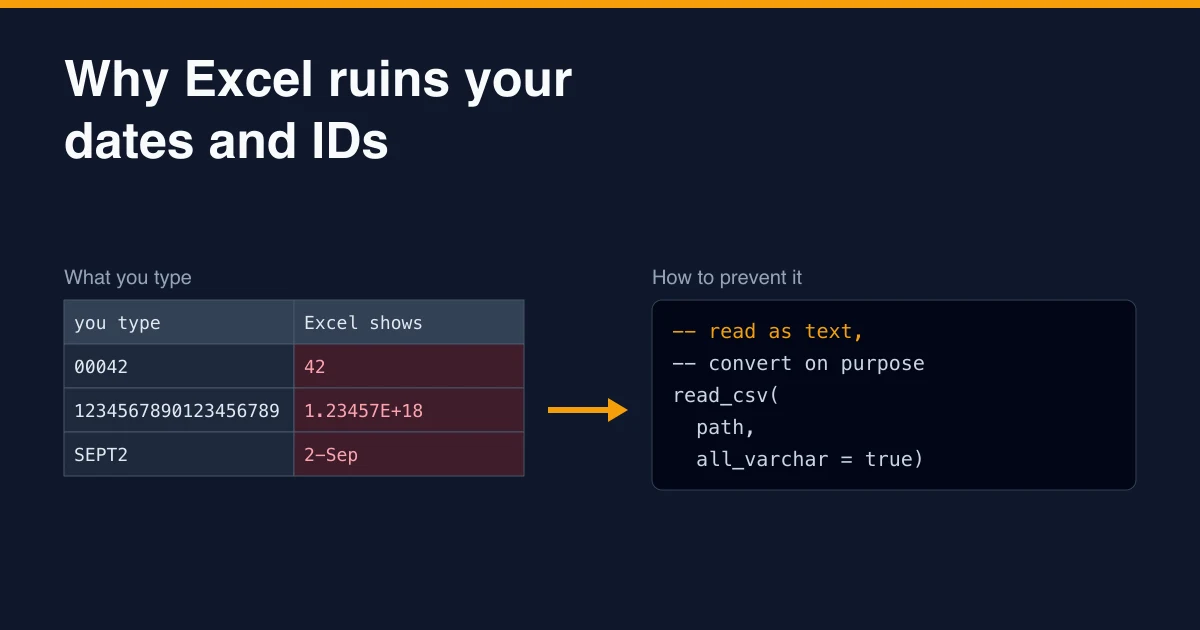
Excel ruins dates and IDs because it guesses a type for every value you type, paste or open, and it guesses "number" or "date" whenever it can. A ZIP code like 02134 becomes the number 2134. Excel's number precision is 15 significant digits, so a 19-digit account reference keeps only its first 15 digits. A gene symbol like SEPT2 or a product code like JAN1 becomes a date. The original text is gone from the cell the moment the conversion happens, so saving the file writes the damaged value back to disk.
You can prevent almost all of it by never letting Excel open a raw data file directly. Import it with every identifier column typed as text, or do the cleaning in a tool where you declare the types yourself.
Key Takeaways
- Excel converts values on entry, paste and CSV open; leading zeros, digits after the 15th, and date-like text are the usual casualties.
- The damage is often permanent: truncated digits and converted gene names cannot be recovered from the file.
- In Excel, use Data > From Text/CSV and set identifier columns to Text, or switch off the conversions under Automatic data conversion.
- In code, read files as text first (
all_varcharin DuckDB,dtype="string"in pandas) and convert columns deliberately.- Check every file that has passed through a spreadsheet for short codes, scientific notation and IDs ending in zeros.
What exactly does Excel change?
Excel stores each cell as a number, a date (which is also a number), a boolean or text. When it sees something that looks like a number or a date, it converts it. The first four rows below are the default conversions Microsoft documents for current versions (Microsoft, Data import and analysis options in Excel); the fifth comes from Excel reading dates according to the computer's regional settings:
| You type or load | Excel stores | Why it matters |
|---|---|---|
00123 |
123 |
ZIP codes, account numbers and product codes lose their leading zeros |
12345678901234567890 |
1.23457E+19, first 15 digits kept |
16-digit card numbers, 18-digit order IDs and other long keys change value |
123E5 |
1.23E+07 |
Codes containing an "E" become scientific notation |
JAN1 |
The date 1 January | Codes and gene symbols become dates |
03/04/2026 |
3 April or 4 March, depending on regional settings | The same file means different dates on different machines |
The 15-digit limit is a property of how Excel stores numbers: it keeps at most 15 significant digits, and digits after the 15th are replaced with zeros (Microsoft, Keeping leading zeros and large numbers). A 16-digit card number typed as a number is stored with a 0 as its last digit, and no format change brings the real digit back.
Dates have their own trap. Excel stores a date as a serial number counting days from 1 January 1900, or from 1 January 1904 in workbooks using the older Mac date system. The two systems differ by 1,462 days (Microsoft, Date systems in Excel), so copying dates between workbooks with different systems shifts them by about four years.
How common is the damage?
Common enough to be measured in published science. A 2021 study in PLOS Computational Biology screened 11,117 genomics papers that shipped gene lists as Excel supplementary files and found gene name errors in 3,436 of them, or 30.9% (Abeysooriya et al., "Gene name errors: Lessons not learned"). Symbols such as SEPT8, DEC1 and MARCH3 had been turned into dates. The problem was persistent enough that the human gene nomenclature committee renamed the affected genes; SEPT1 became SEPTIN1 and MARCH1 became MARCHF1, as the same paper describes.
The study also found that Google Sheets converted the gene names in the authors' tests, while LibreOffice and Gnumeric did not. So the lesson is not only about Excel. Any tool that infers types from what values look like can do this, including pandas, as the examples below show.
Why can't you just undo it later?
Some conversions lose information outright:
- Truncated digits are gone. Once a 19-digit ID is stored as
1.23457E+18and saved, the last four digits no longer exist anywhere in the file. - Leading zeros are ambiguous. You can restore them only if you know the code has a fixed width. A five-digit ZIP code can be padded back to five digits; a customer number that was sometimes
042and sometimes0042cannot. - Converted codes collide. If
SEPT2and a genuine date both end up as 2 September, you cannot tell which cells were which.
Microsoft's own guidance makes the same point about formatting: changing a column to Text afterwards does not change numbers that were already entered (Microsoft, Keeping leading zeros and large numbers). Prevention is the only reliable fix.
How to stop Excel changing your data
Import instead of opening
Double-clicking a CSV lets Excel apply every default conversion. Instead, start from a blank workbook and use Data > From Text/CSV, choose Transform Data, and set each identifier and code column to Text before loading. This uses Power Query, which records the column types as a step, so the next refresh of the same file is typed the same way.
Switch off the automatic conversions
Current Microsoft 365 versions of Excel let you turn off individual conversions: removing leading zeros, keeping only the first 15 digits of long numbers, converting digits around the letter "E", and converting letters and numbers to dates. On Windows the options are under File > Options > Data > Automatic data conversion (Microsoft, Data import and analysis options in Excel); on a Mac they are under Excel > Preferences > Edit > Automatic Data Conversion. Microsoft notes a limit: values with spaces or other characters, such as JAN 1 or JAN-1, may still be treated as dates.
Format as Text before you paste
For quick manual work, format the destination column as Text before pasting, or type an apostrophe before a value ('00123) so Excel keeps it as text. This protects new entries only; it does not repair existing cells.
Never save a raw extract back to CSV from Excel
If you open a file only to look at it, close it without saving. Saving writes the converted values, and the next person to load the file inherits the damage without knowing it happened.
Read files as text in DuckDB and pandas
The more robust route is to keep raw data out of spreadsheets and declare types in code. This matters because code tools guess too. Here is a small file with a customer ID, a ZIP code, a 19-digit reference, a gene symbol and a day-first date:
customer_id,zip,card_ref,gene,order_date
00042,02134,4111111111111111111,SEPT2,03/04/2026
00107,10001,4222222222222222222,MARCH1,12/04/2026
pandas with default settings drops the leading zeros just as Excel does:
import pandas as pd

print(pd.read_csv("ids.csv"))
   customer_id    zip             card_ref    gene  order_date
0           42   2134  4111111111111111111   SEPT2  03/04/2026
1          107  10001  4222222222222222222  MARCH1  12/04/2026
Reading every column as text keeps the file exactly as written:
df = pd.read_csv("ids.csv", dtype="string")
print(df)
  customer_id    zip             card_ref    gene  order_date
0       00042  02134  4111111111111111111   SEPT2  03/04/2026
1       00107  10001  4222222222222222222  MARCH1  12/04/2026
In DuckDB, declare the identifier columns as VARCHAR and state the date format instead of letting it guess:
SELECT *
FROM read_csv('ids.csv',
  types = {'customer_id': 'VARCHAR', 'zip': 'VARCHAR', 'card_ref': 'VARCHAR'},
  dateformat = '%d/%m/%Y');
┌─────────────┬─────────┬─────────────────────┬─────────┬────────────┐
│ customer_id │   zip   │      card_ref       │  gene   │ order_date │
│   varchar   │ varchar │       varchar       │ varchar │    date    │
├─────────────┼─────────┼─────────────────────┼─────────┼────────────┤
│ 00042       │ 02134   │ 4111111111111111111 │ SEPT2   │ 2026-04-03 │
│ 00107       │ 10001   │ 4222222222222222222 │ MARCH1  │ 2026-04-12 │
└─────────────┴─────────┴─────────────────────┴─────────┴────────────┘
03/04/2026 is now 3 April because the format said day first, not because of the machine's regional settings. The rule of thumb is the same in both tools: identifiers are text, and dates are parsed with a declared format. The guides on identifiers and leading zeros and parsing dates when formats are ambiguous go deeper, and the lesson on explicit types at import shows the pattern step by step.
How to detect a file that has already been through Excel
When a file arrives that someone may have opened and saved in a spreadsheet, profile it for the fingerprints before you use it. Here is a three-row sample of the kind of damage to look for:
CREATE TABLE damaged AS
SELECT * FROM (VALUES
  ('42',    '2134',  '4.11111E+18',         '2-Sep'),
  ('107',   '10001', '4222222222222220000', '1-Mar'),
  ('00311', '60614', '4333333333333333333', 'TP53')
) AS t(customer_id, zip, card_ref, gene);
Each check below counts rows that match a known symptom:
SELECT
  count(*) FILTER (WHERE length(zip) < 5)                                  AS short_zips,
  count(*) FILTER (WHERE regexp_matches(card_ref, '^[0-9.]+E\+[0-9]+$'))   AS sci_notation,
  count(*) FILTER (WHERE regexp_matches(card_ref, '^[0-9]{16,}$')
                     AND card_ref LIKE '%000')                             AS ends_in_zeros,
  count(*) FILTER (WHERE regexp_matches(gene,
    '^[0-9]{1,2}-(Jan|Feb|Mar|Apr|May|Jun|Jul|Aug|Sep|Oct|Nov|Dec)$'))     AS date_like_genes
FROM damaged;
On that sample the result is:
┌────────────┬──────────────┬───────────────┬─────────────────┐
│ short_zips │ sci_notation │ ends_in_zeros │ date_like_genes │
│   int64    │    int64     │     int64     │      int64      │
├────────────┼──────────────┼───────────────┼─────────────────┤
│          1 │            1 │             1 │               2 │
└────────────┴──────────────┴───────────────┴─────────────────┘
A count above zero is not proof of damage (some real references end in 000), but it tells you which rows to check against the source system. Where a code has a documented fixed width, you can repair leading zeros safely:
SELECT zip, lpad(zip, 5, '0') AS zip_fixed
FROM damaged;
Do this only when the width is a rule of the code itself, such as five-digit US ZIP codes. For everything else, request a fresh extract. Truncated digits and converted gene names have to come from the source again.
You can practise these checks on graded exercises: keep identifiers as text and parse yes/no flags and parse dates by declared locale are free, and long IDs must stay text covers the 15-digit problem directly.
Frequently asked questions
Why does Excel remove leading zeros?
Because it treats any value made only of digits as a number, and numbers have no leading zeros. The value 00123 and the value 123 are the same number. To keep the zeros, the cell must be text, which you set by importing the column as Text, formatting it as Text before entry, or turning off the "Remove leading zeros" conversion.
Can I recover digits Excel has replaced with zeros?
No. Excel keeps only 15 significant digits, so the 16th digit onward is never stored. If the file was saved afterwards, the original digits exist only in the source system or in an untouched copy of the file.
Does this happen in Google Sheets too?
Yes. Google Sheets also infers types, and the 2021 gene name study found it converted gene symbols to dates in the authors' tests. LibreOffice and Gnumeric did not in the same tests. Whatever tool you use, check how it handles identifiers before trusting it with raw data.
Is pandas safe from this problem?
Not by default. pd.read_csv infers column types and will read 00042 as the integer 42. Pass dtype="string" (or a per-column mapping) to keep identifiers as text, then convert the columns that really are numbers.
Related reading
- Moving Data Cleaning From Excel to SQL: A Translation Guide
- How to Clean Phone Numbers in SQL and Python
- Cleaning Messy CSV Files With DuckDB's read_csv Options
Sources
- Abeysooriya M, Soria M, Kasu MS, Ziemann M. Gene name errors: Lessons not learned. PLOS Computational Biology, 2021.
- Microsoft. Data import and analysis options in Excel.
- Microsoft. Keeping leading zeros and large numbers.
- Microsoft. Date systems in Excel.